Install MapsScraper
Download the extension and follow the 4-step guide for your browser. Takes less than a minute.
MapsScraper is no longer published on the Chrome Web Store. It is distributed directly from this site. Your license key continues to work — just install and activate.
Install on Chrome
Works on Chrome 88 and newer.
Documents/MapsScraper).
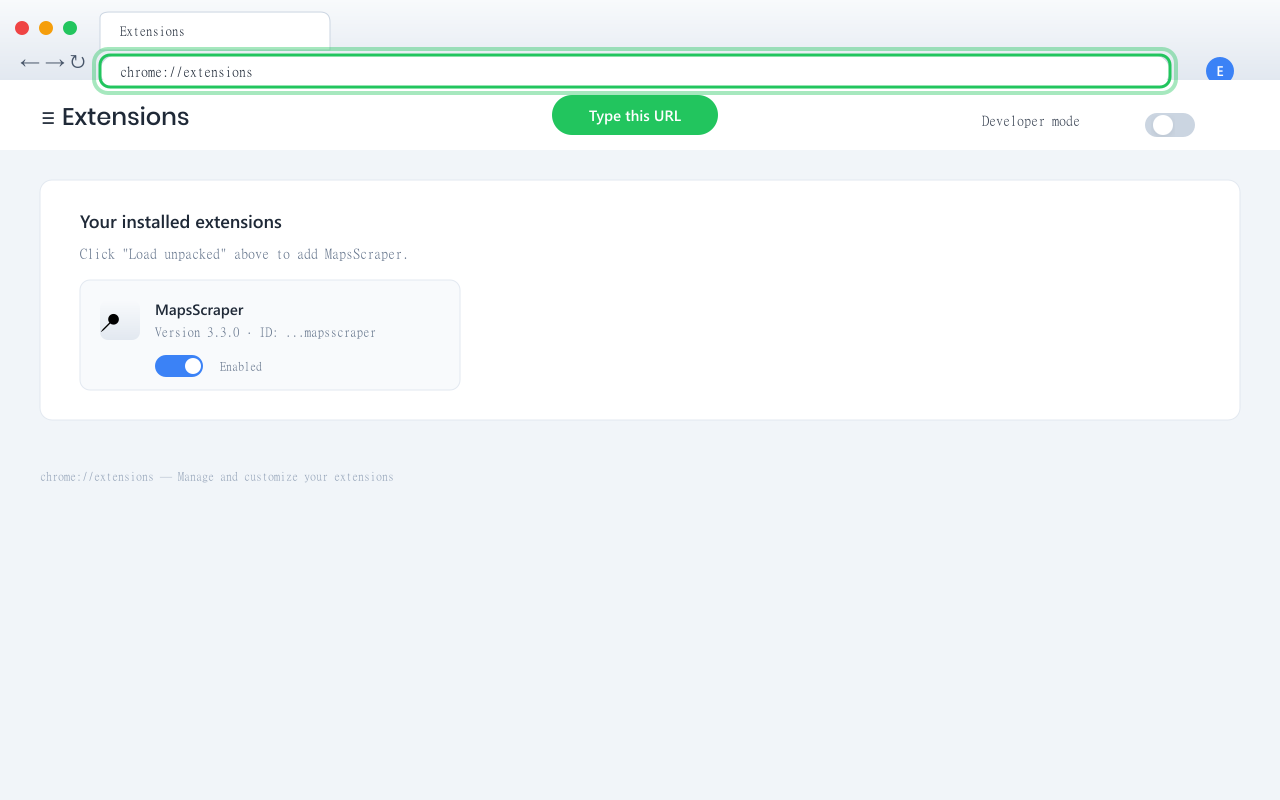
chrome://extensions in the address bar and press Enter.
Install on Microsoft Edge
Works on Edge 88+ (Chromium-based).
Documents/MapsScraper).
edge://extensions in the address bar.
Install on Brave
Same steps as Chrome — Brave is Chromium-based.
brave://extensions in the address bar.
Install on Opera or Vivaldi
Both browsers are Chromium-based and support unpacked extensions.
opera://extensionsVivaldi: Type
vivaldi://extensions
Opera note: Opera sometimes hides extensions from other vendors — if you don't see the icon, click the puzzle-piece menu next to the address bar.
For detailed lead generation strategies, see our complete playbook or browse all blog posts.
Common Questions
Is Developer Mode safe?
Yes. Developer Mode just lets you install extensions from sources other than the Chrome Web Store. The extension itself runs in the same sandbox as any other Chrome extension. MapsScraper code is unobfuscated and open to inspection — you can review every file before loading it.
Why am I seeing "Disable developer mode extensions" warning?
Recent Chrome versions show this warning every time you open the browser. It's a Chrome reminder — not a security issue. Just click Cancel to keep MapsScraper active. The warning will reappear next time, that's normal.
Does it update automatically?
No. Since the extension is distributed directly from this site, you'll need to manually download and reload the new version when an update is released. MapsScraper checks for updates daily and will show a banner in the side panel + send you an email (Premium users) when a new version is available.
Did you get removed from the Chrome Web Store?
We chose to distribute MapsScraper directly so we can ship features faster without store review delays. The extension code, your license key, and your data all continue to work exactly the same way.
What happens to my license if I reinstall?
Your license is tied to your account (email + device fingerprint), not to a specific installation. Just paste your license key into the new install and you'll be back on Premium instantly. Premium plans support up to 3 devices.
Can I delete the .zip folder after install?
No — Chrome loads the extension files from the folder each time it starts. If you delete or move the folder, the extension will stop working. Put it somewhere permanent (Documents, AppData, etc.).
I lost my license key — what now?
Go to mapsscraper.shop/recover.html and enter the email you used at checkout. We'll re-send the welcome email with your key and subscription management links.
How do I cancel my subscription?
Open the welcome email you received after purchase — it has a "Cancel subscription" button that takes you to the Paddle Customer Portal. If you lost that email, recover it via mapsscraper.shop/recover.html.
I'm having trouble — who do I contact?
Email us at support@mapsscraper.shop with a screenshot of what you're seeing. We usually reply within a few hours.